Stop losing class time to bathroom trips. Students scan a QR badge or type their student ID — plus automatic waiting lists and customizable rotating day schedules. Built by a teacher who actually uses it every day.
Runs on a laptop, tablet, or classroom computer in your browser — no IT install required.
Keep the app open on a laptop or tablet in your room. A webcam is ideal so students can scan QR badges in Kiosk Mode. No camera? Students can type their student ID instead.
Internet is required the first time you activate your license (or start a 7-day free trial). Staying online helps push app updates automatically.
Export a CSV from Canvas or your gradebook (export video), then import it in Admin Settings (import video). Columns: Last Name, First Name, Student ID Number, Grade Level — example: Smith, John, 1234567890, 10.
Print QR codes from Admin — or have students take a photo of their QR and keep it on their phone. The camera reads QR codes only, not barcodes on school IDs.
Enter your class period times in Admin if you use the 10/10 (or 5/5) pass block rule. Some school builds preload this for you.
Students scan or type their ID to check out, return, or join the waiting list. You get pass logs, frequency alerts, and teacher tools — all on one screen.
A full instructional guide is built into the app under Teacher Manual in Admin Settings.
Runs in your browser on your classroom computer — no admin install, no IT ticket, no cloud storage of student data.
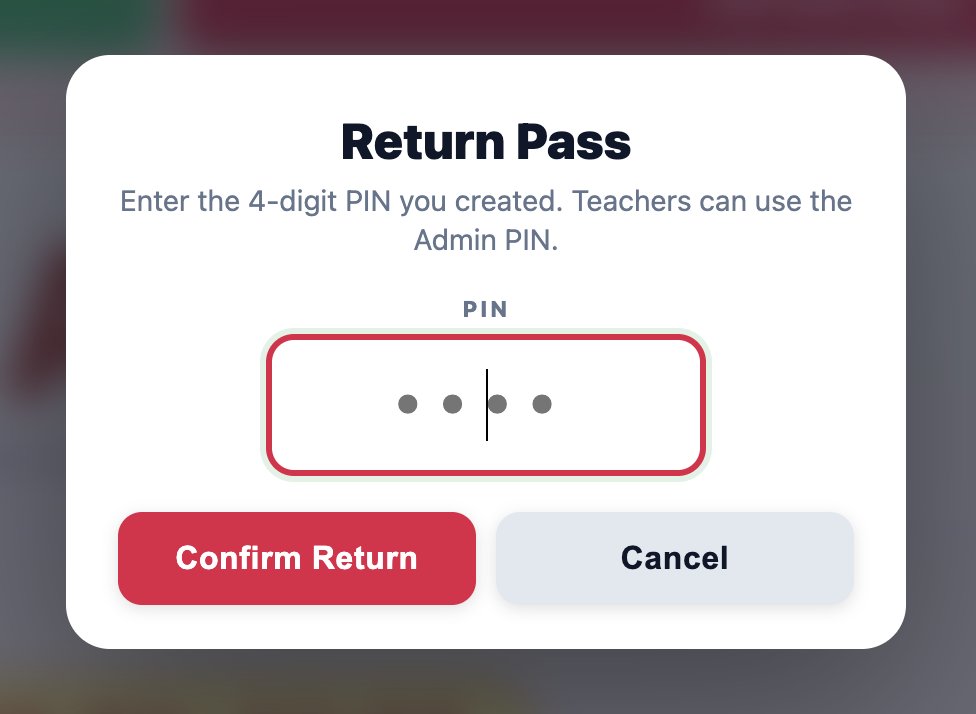
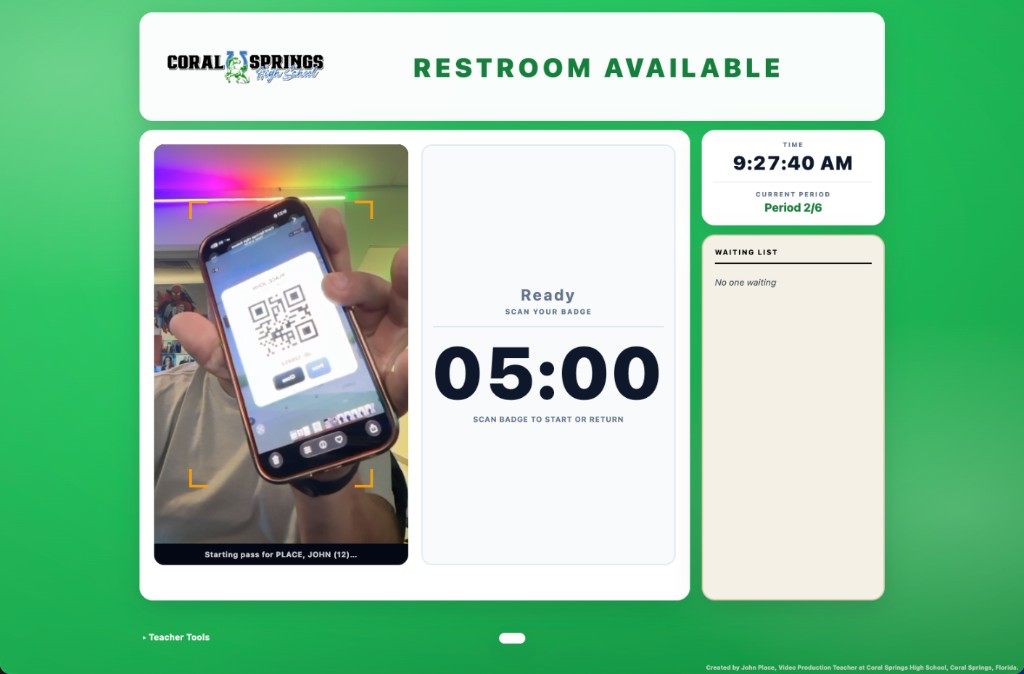
Students scan their QR badge or type their student ID to start or return a pass. No camera? Manual entry works great — fast and accurate either way.
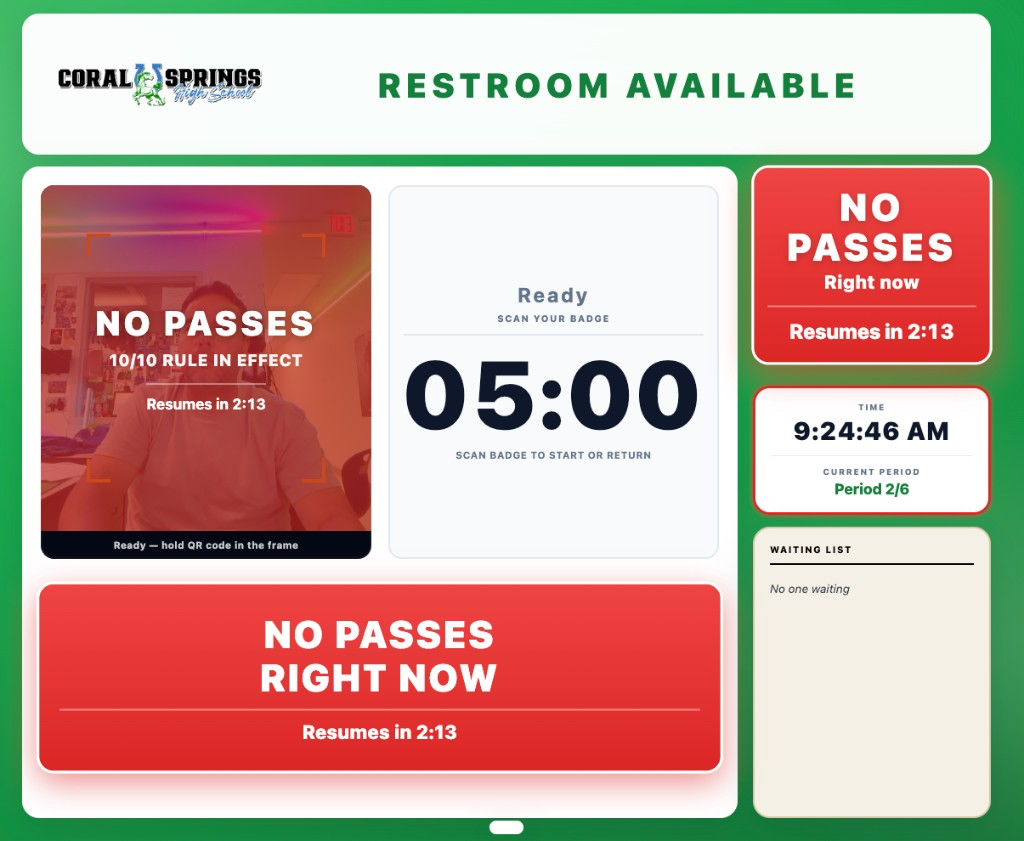
Big, bold countdown clock shows who's out and how long they've been gone. Impossible to miss from across the room.
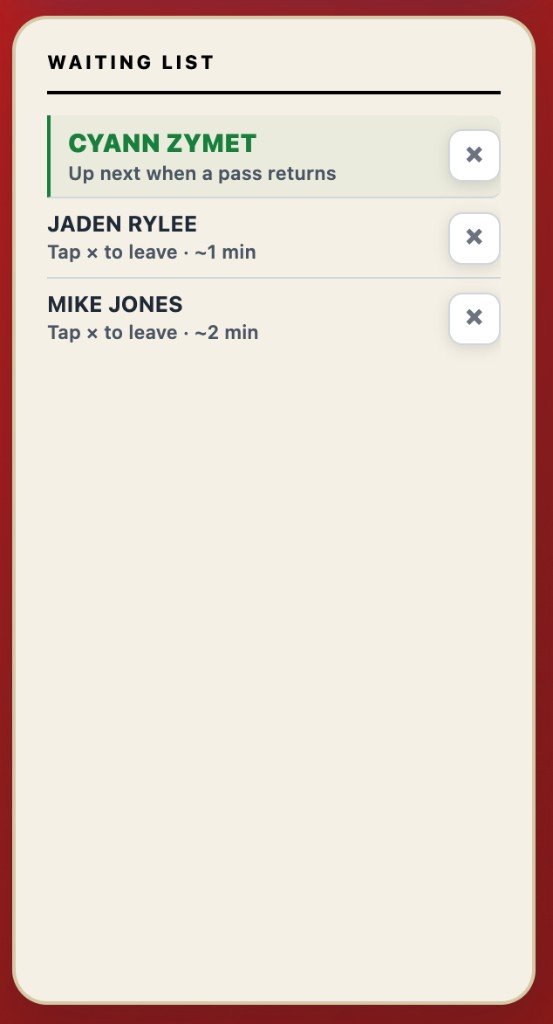
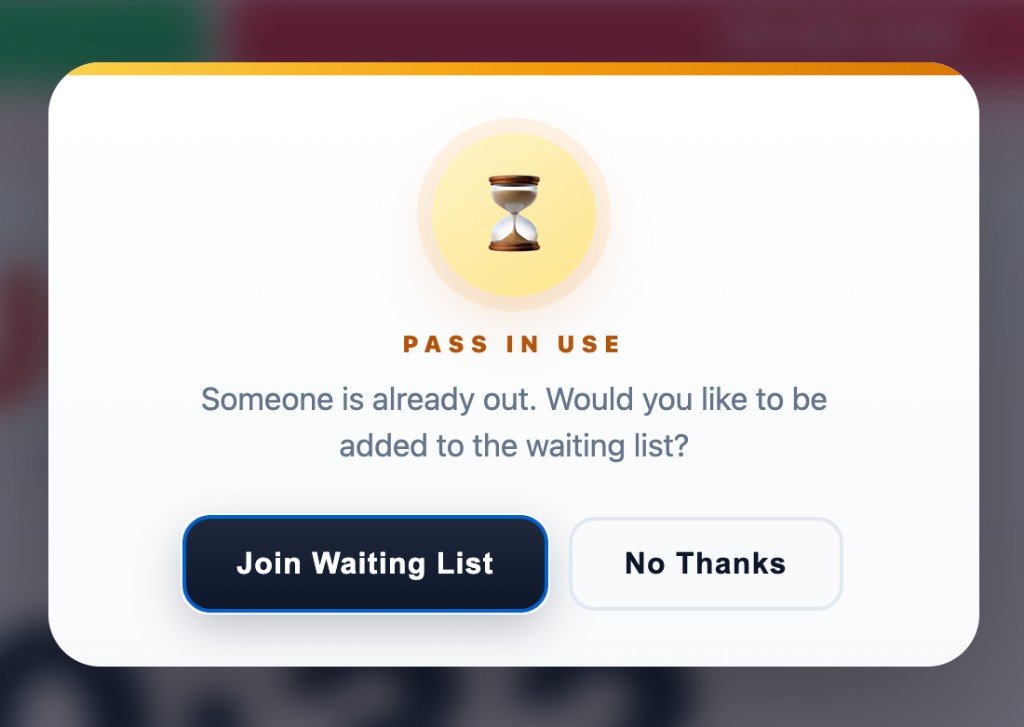
Only one student out at a time. Others queue up automatically and get notified when it's their turn.
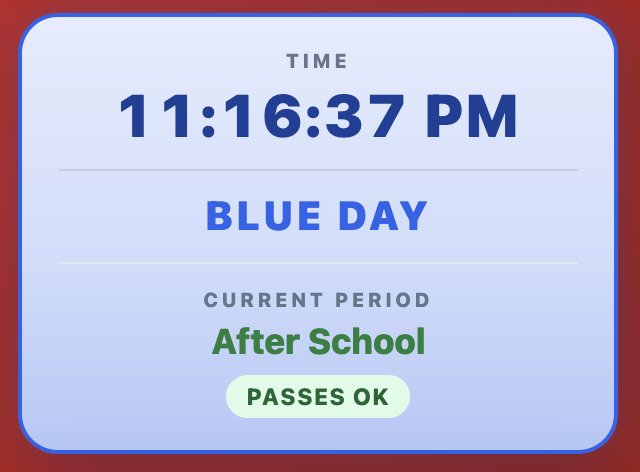
Customize day labels and colors for your school — Blue/Green, A/B, or any names. The time card updates automatically each day.
Block specific students with a custom alert — no more browser popups, styled right in the app.
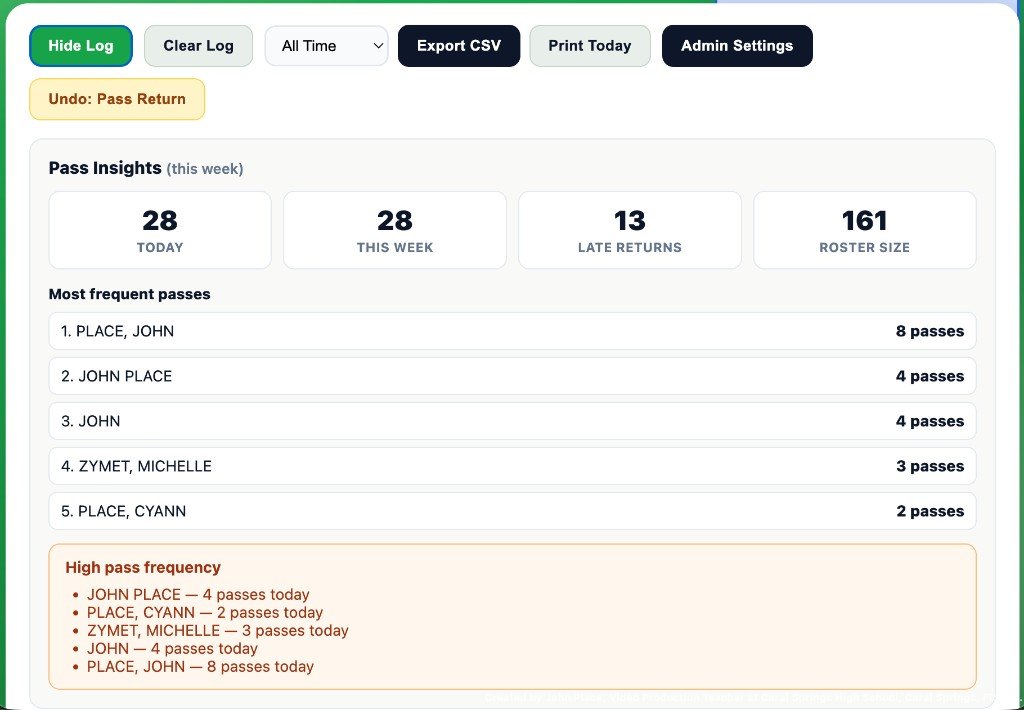
Pass Insights shows daily stats and frequent passers. Export CSV, print today's summary, or get an end-of-day export reminder.
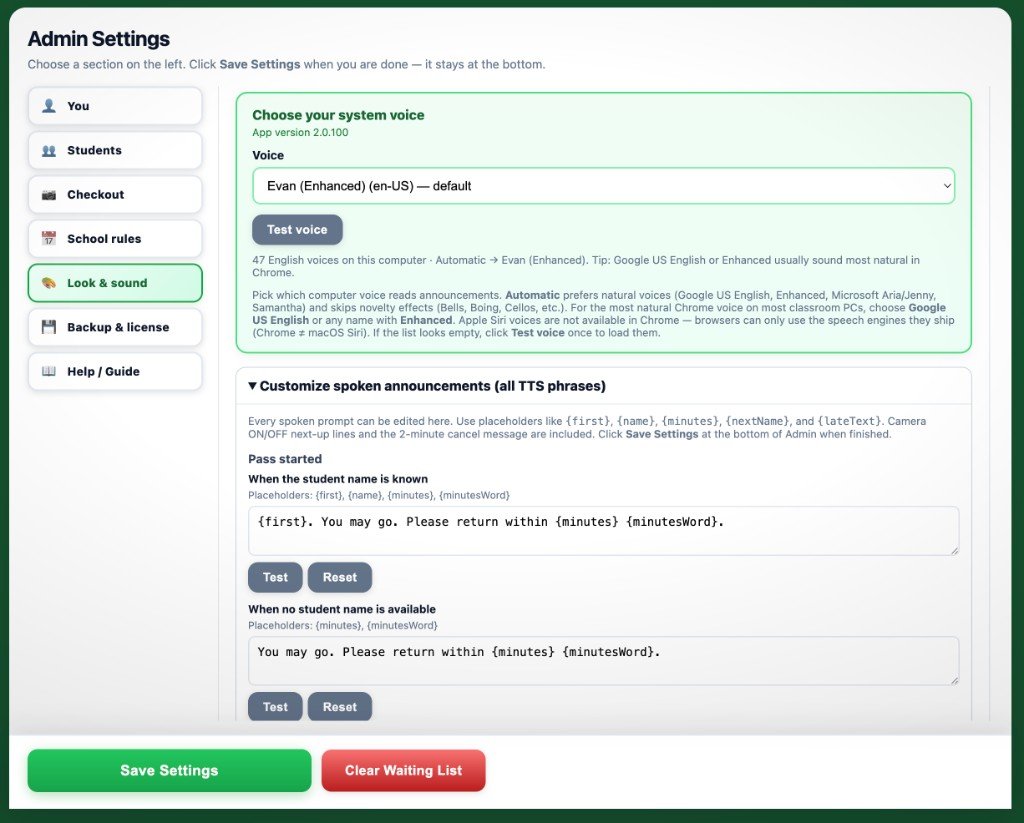
Set bell times and period blocks. The clock sidebar shows PASS BLOCK ACTIVE during no-pass windows. Import/export full school config in one file.
Import your student list, generate QR badges, and manage your roster from the admin panel. Roster data is saved on this computer only — not uploaded to the cloud.
Names, IDs, pass logs, and schedules stay on your classroom computer. Nothing is synced to a cloud server. Internet is only for license checks — Place For Teachers does not collect or share student information with any third party.
Solo teachers get one key per purchase. Schools get one shared key with a seat pool. Transfer to a new computer anytime from Admin.
Restroom passes usually turn into chaos — one student asks, then it’s a parade down the hallway. Version 2 keeps the classroom tools teachers already use, and makes the pass screen easier to run from across the room.
Nothing teachers rely on was removed. QR / badge scanning, walk-up name or student ID + PIN, class roster & printed badges, waiting list, late tracking, No Pass List, 10/10 (or 5/5) rule, school schedules & rotating days, Teacher Tools / logs / CSV export, Admin settings, fullscreen kiosk, and local-only student data are all still in Version 2.
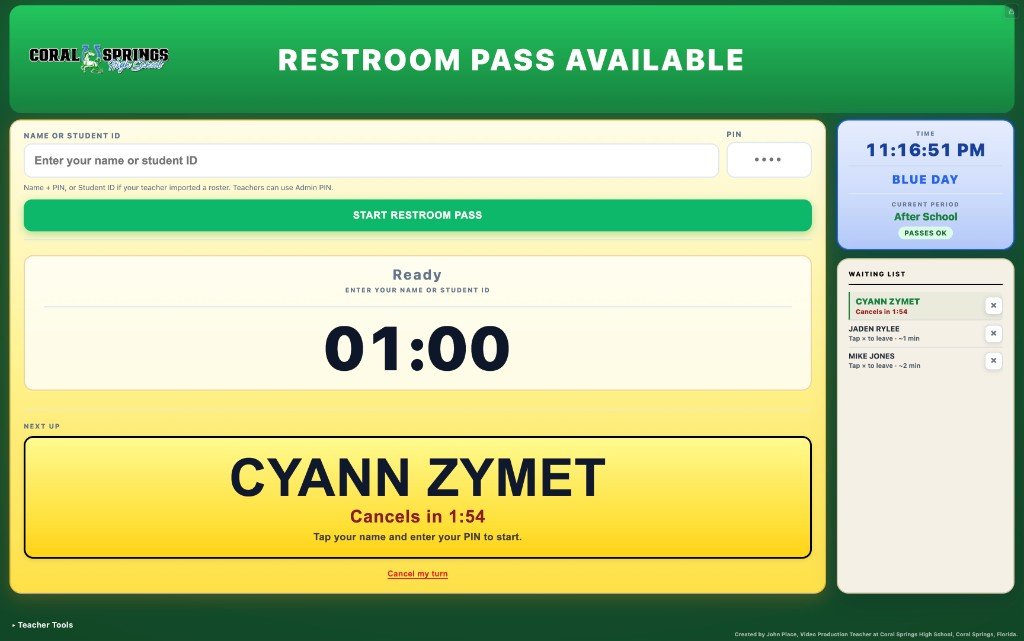
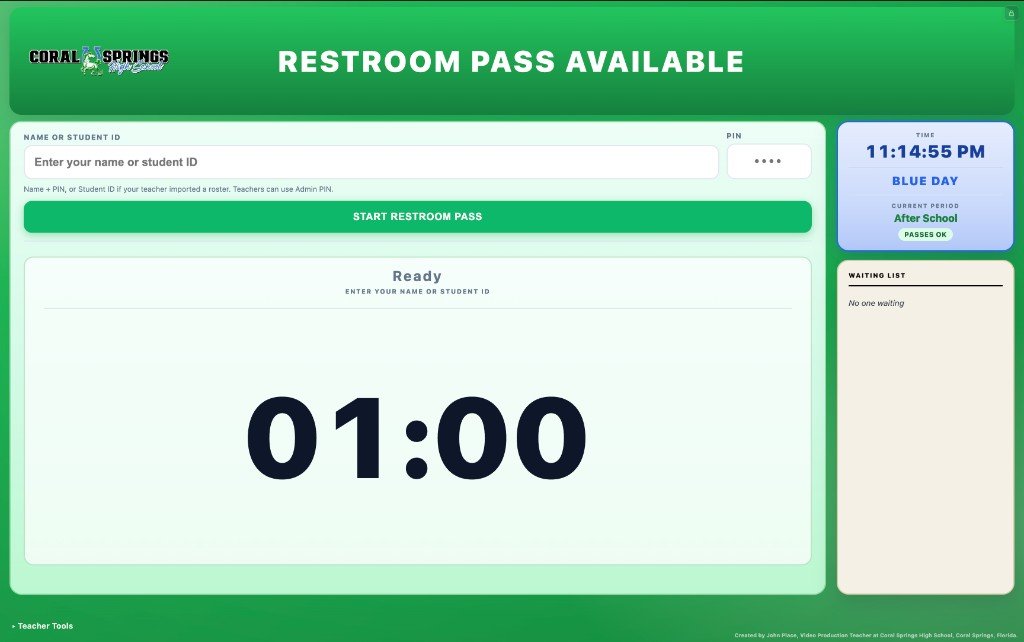
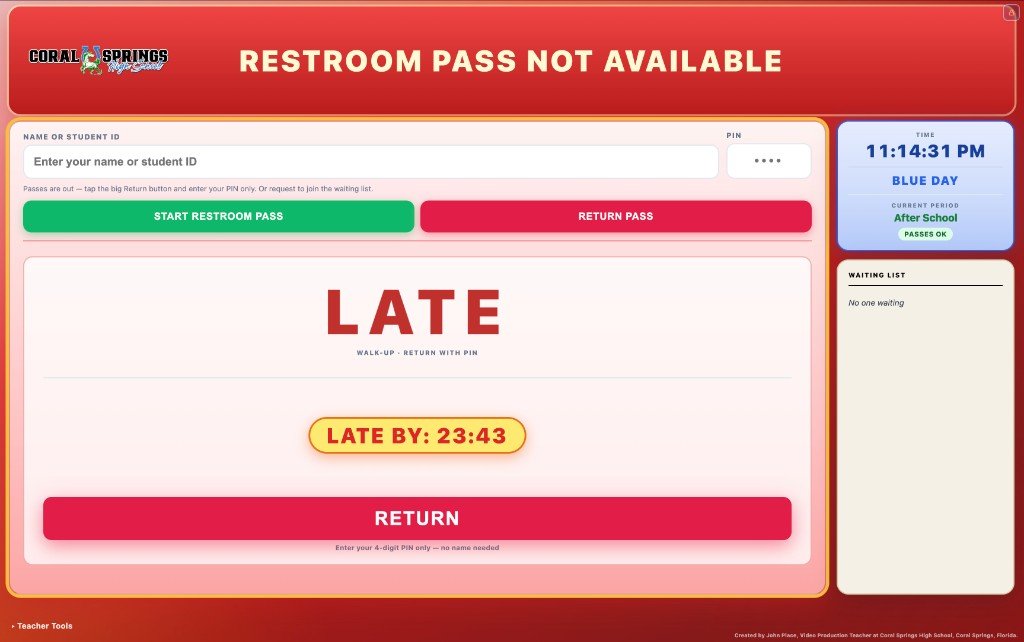
Real classroom screens — the Version 1 tools you already know, plus clearer status, queue, and teacher tools.
Station status
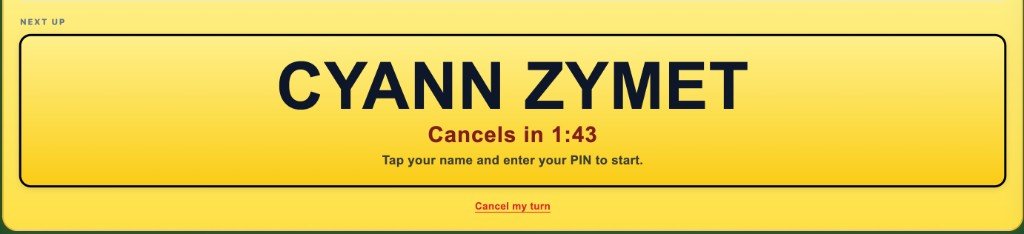
Queue & next up
Teacher tools
This short video is the original classroom pitch — why paper passes fail and what a digital station fixes. Version 2 keeps the same idea and the Version 1 tools teachers already rely on (QR / badge, roster, waiting list, late alerts, No Pass List, 10/10 rule, logs, admin, fullscreen) — with a clearer station: scan a QR badge or enter name or student ID + PIN, big status colors, and a NEXT UP flow students can’t miss. Learn more at www.placeforteachers.com.
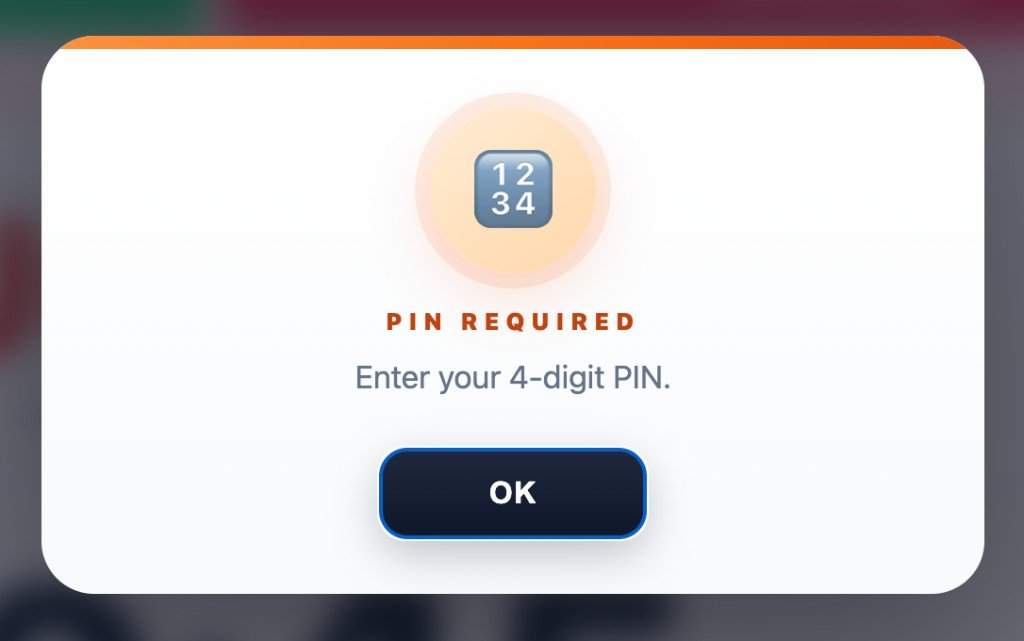
Day to day in Version 2: green = available, red = someone is out, yellow = next person’s turn — waiting list, name or student ID + PIN, and you stay in control.
It does not need a powerful computer. Teachers at my school use spare and donated Windows laptops. I run mine on a Windows tablet mounted on the wall, with the physical restroom pass hanging next to it so students can scan and grab the pass.
Not sure? Send feedback before purchasing — bugs, compatibility questions, or school quotes.
One classroom computer per license. Version 2 only — future major versions sold separately.
Charges appear as The Creative Place LLC on your statement. All sales final. License key emailed instantly after payment.
Each seat = one classroom computer. Buy the number of classrooms you need — your school receives one shared license key with that many seats. Volume discounts start at 25 classrooms.
| Classrooms | Discount | Annual / seat | Lifetime V2 / seat |
|---|---|---|---|
| 1–24 | — | $15.00 | $30.00 |
| 25–49 | 15% off | $12.75 | $25.50 |
| 50+ | 20% off | $12.00 | $24.00 |
Example: 47 annual licenses → 47 × $12.75 = $599.25 total (15% school discount).
School orders include:
District-wide or multi-school quotes · 75+ classrooms · send feedback for a custom quote
Enter any number of classrooms (1–5,000). Volume pricing begins at 25.
School bulk checkout via PayPal — one shared key for your entire order. PO / quote requests: use Send Feedback.
Hey fellow teachers,
Let’s be honest — restroom passes usually turn into total chaos. The first kid asks, then boom, it’s a never-ending parade through the hallway. Paper sign-in sheets? Bad handwriting, wrong times, a mess.
I built this for my own classroom over a summer — about 73 hours start to finish — because I needed something simple, fast, and actually usable every period. After it worked for me, I cleaned it up and shared it so other teachers could use it too.
How Version 2 works: everything teachers relied on in Version 1 is still here — QR / badge scanning, roster, waiting list, late tracking, No Pass List, 10/10 rule, logs, and admin. Students scan a QR badge or enter name / student ID + PIN. Green means available; red means someone is out; yellow means next up. Late returns are logged. You stay in control without the drama.
The goal was simple. Save your time. Keep things running smoother. Maybe help you hang onto a few more hairs. And possibly make a couple dollars to finally replace the classroom stapler that vanished back in October, restock the candy stash I pretend students don't know about, and get a dry erase marker that actually lasts longer than a class period.
Thanks for checking this out — I hope it helps your classroom as much as it's helped mine.
John Place
Coral Springs High School · Broward County, Florida
This software is an independent project and is not affiliated with or endorsed by Coral Springs High School or Broward County Public Schools. Any references are for context and credibility only.
No. Student names, IDs, pass logs, schedules, and settings are stored locally on the teacher's classroom computer — not on Place For Teachers servers or any other cloud service. The app only connects to the internet for license activation and periodic license checks. The software does not collect or share student data with any third party.
No install wizard. Start a free trial or purchase a license — you’ll download RESTROOM_PASS_SYSTEM.html after we have your info. Open the file on your classroom computer (Chrome or Edge recommended), enter your license key (or start the trial in the app), and set up your classroom. No admin approval or IT ticket required.
Schools receive one license key with a seat pool (e.g. 100 classrooms = 100 seats). Share that key with your teachers — each teacher activates on their classroom computer. Use the school volume pricing calculator, then checkout with PayPal.
Use a personal email (Gmail, etc.), not your school email. District filters often block activation codes and download links.
Lifetime means all updates and bug fixes for Version 2, forever. If we release Version 3 with major new features, that's a separate purchase — but your V2 license never expires.
Yes. In Admin → Transfer to New Computer, release your seat, then activate on the new device with the same key. School teachers each manage their own activation — swapping a classroom computer works the same way.
Daily use works offline. Internet is only needed for initial license activation and periodic license checks (with a 48-hour offline grace period). Student rosters and pass logs are not uploaded — they stay on your classroom computer.
Use Send Feedback on this site (or in Admin Settings after setup). I've got your back — I use this every day in my own classroom.
Join teachers who've ditched the paper pass log for good.
Get Restroom Pass V2